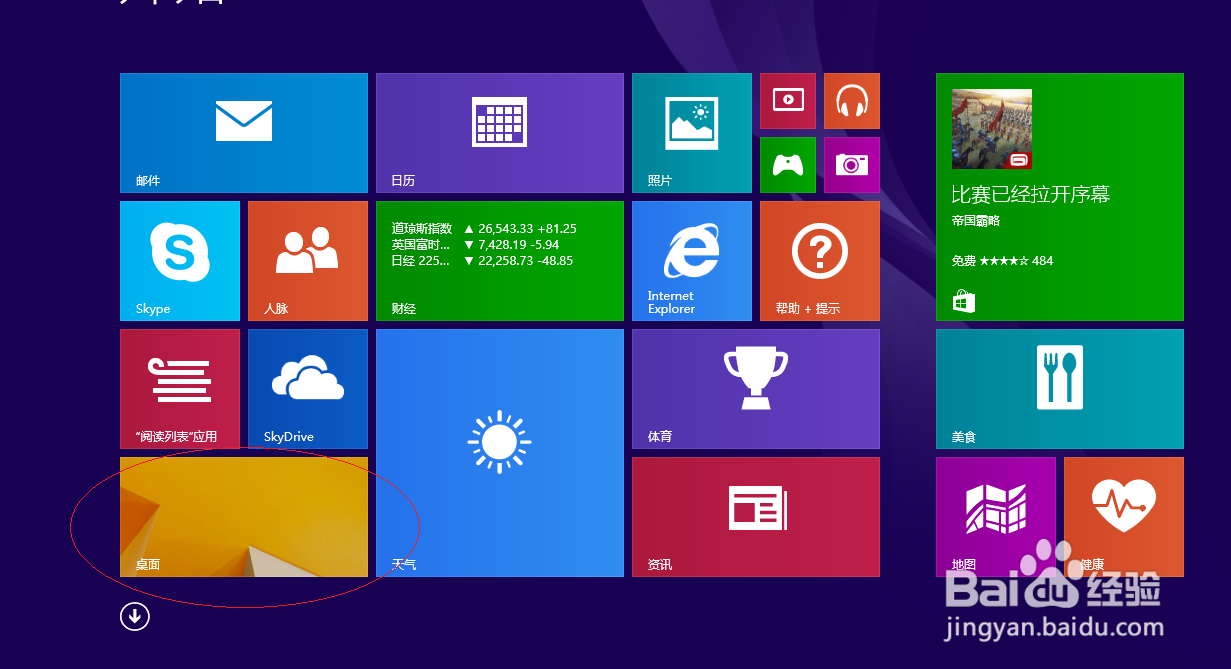
1、启动Windows 8操作系统,点击"控制面板"磁贴
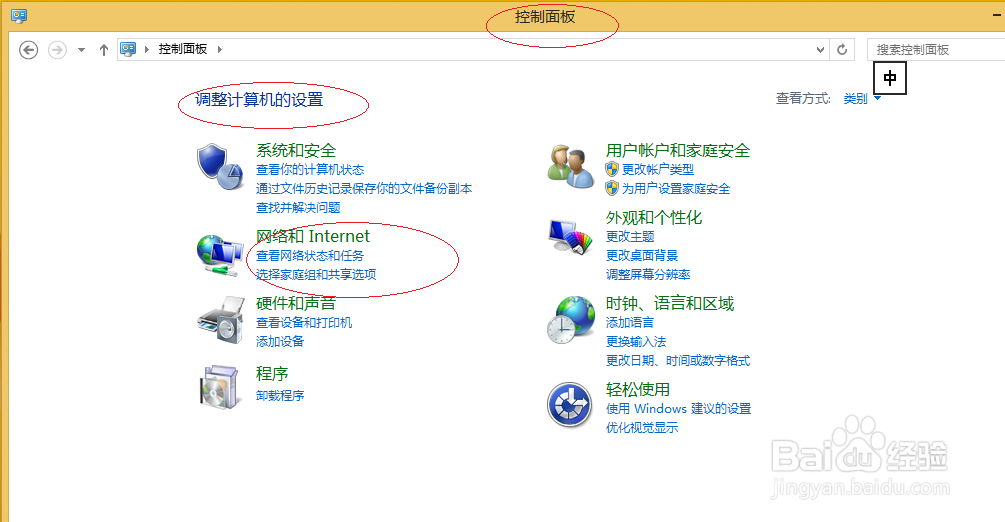
2、接着点击"网络和Internet"图标
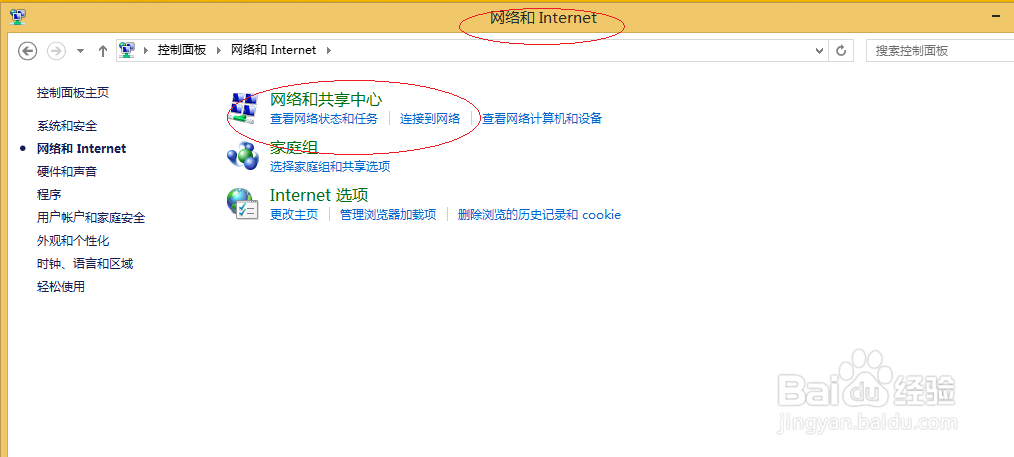
3、唤出"网络和Internet"选项界面,点击"网络和共享中心"图标
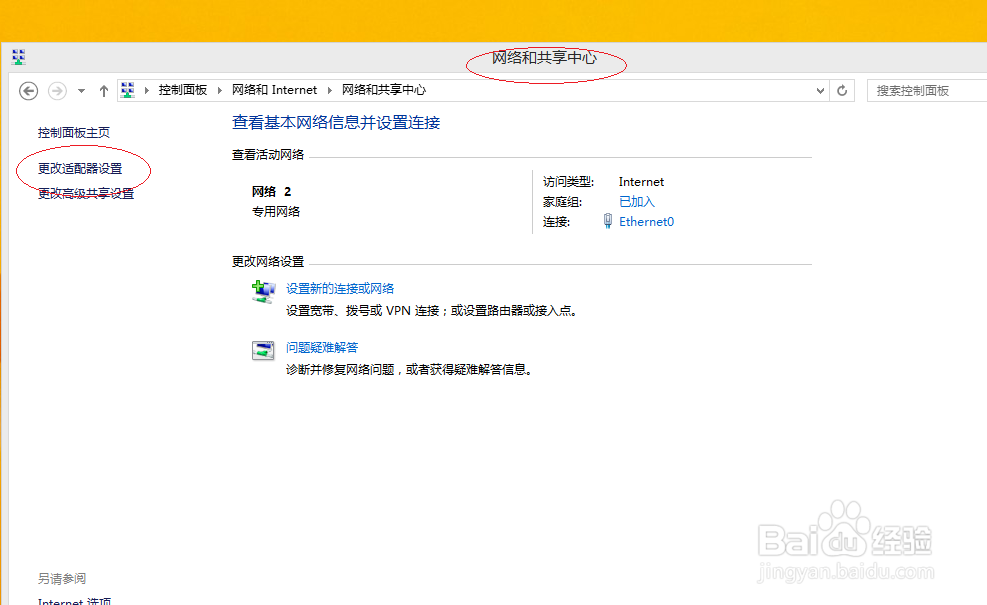
4、点击左侧"更改适配器设置"链接
5、鼠标右击"本地连接"图标,选择"属性"项
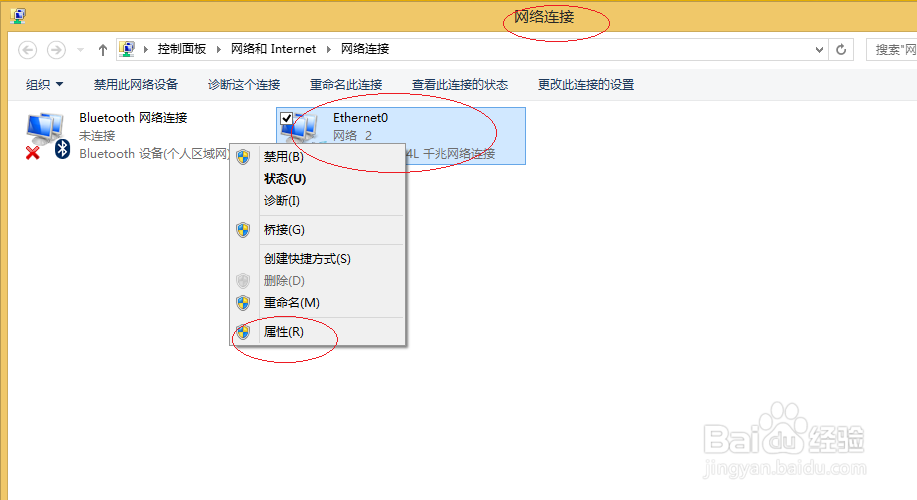
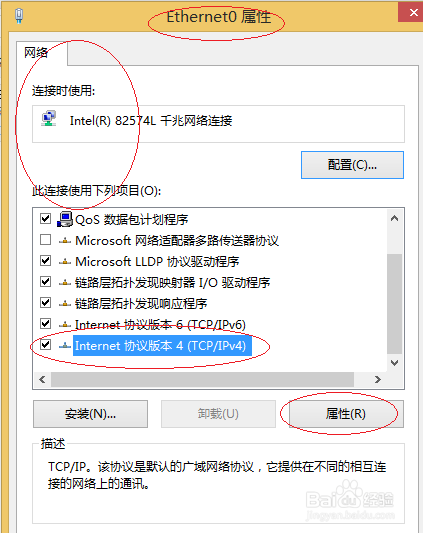
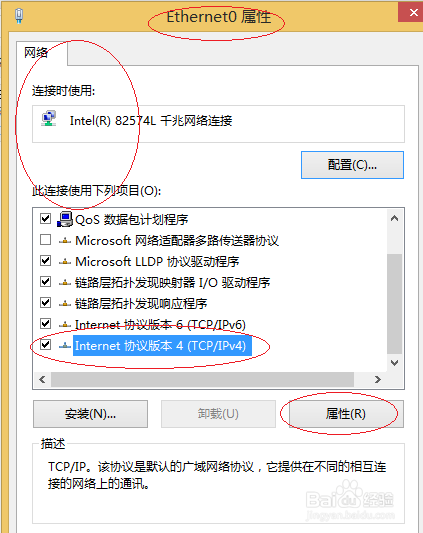
6、点击"Internet 协议版本4(TCP/IPv4)→属性"按钮
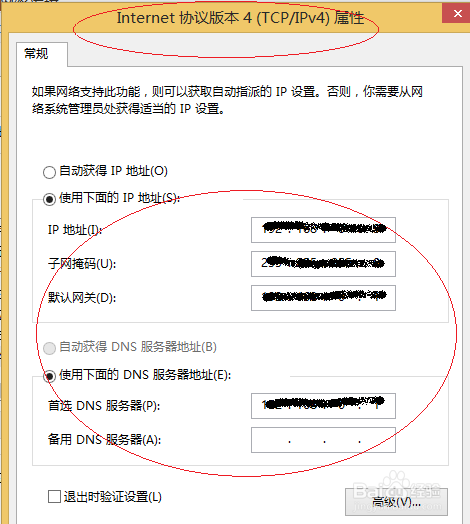
7、完成设置网络IP地址的操作,希望对大家能有所帮助
1、启动Windows 8操作系统,点击"控制面板"磁贴
2、接着点击"网络和Internet"图标
3、唤出"网络和Internet"选项界面,点击"网络和共享中心"图标
4、点击左侧"更改适配器设置"链接
5、鼠标右击"本地连接"图标,选择"属性"项
6、点击"Internet 协议版本4(TCP/IPv4)→属性"按钮
7、完成设置网络IP地址的操作,希望对大家能有所帮助